Best WCAG Testing Tools 2026: An Honest Comparison
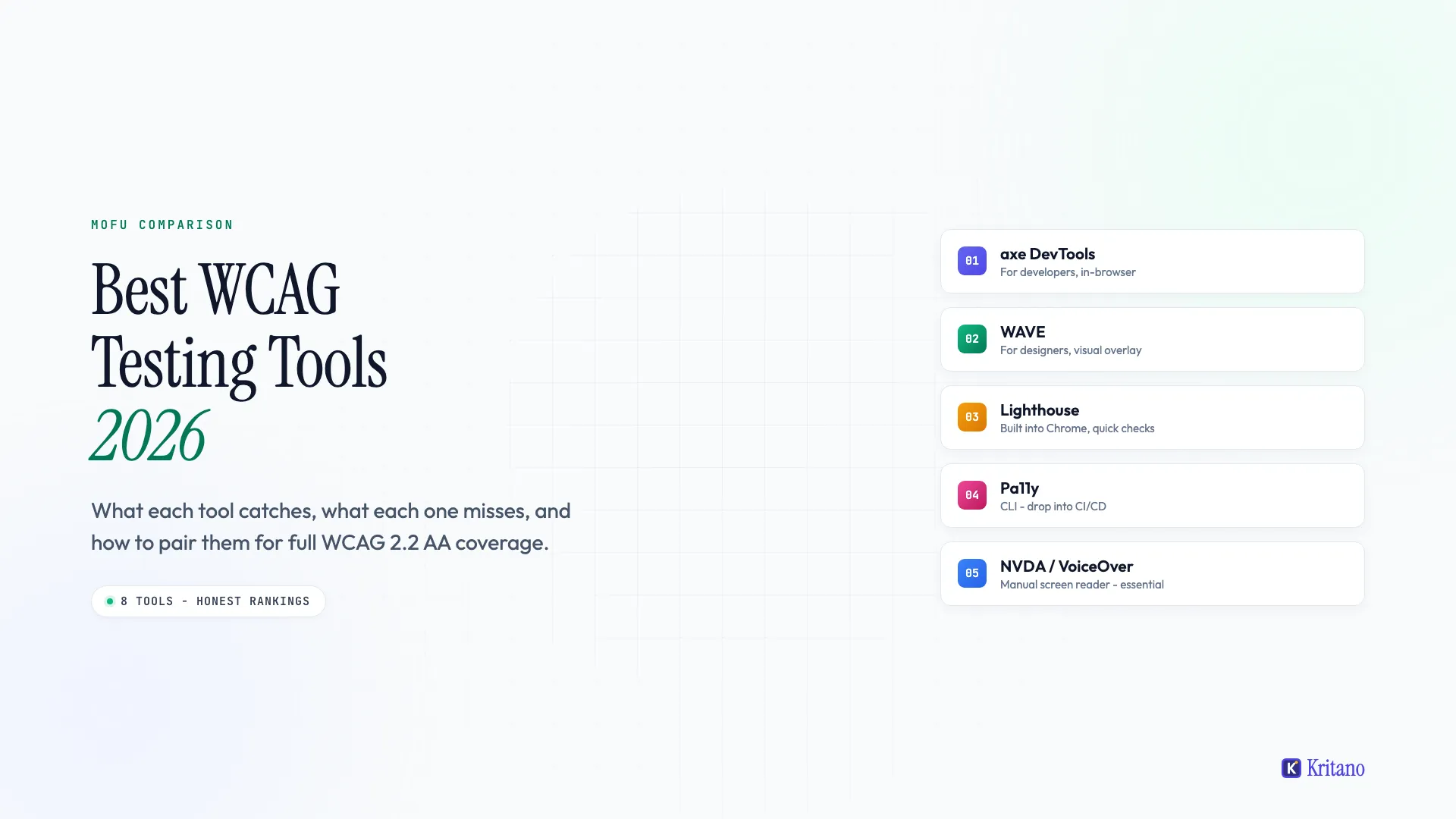
The best WCAG testing tools in 2026 are axe DevTools for catching issues in code, WAVE for designers, Lighthouse for quick checks in Chrome, Pa11y for CI/CD gates, Accessibility Insights for guided manual testing, and a real screen reader (NVDA or VoiceOver) for the final pass. No single tool catches everything, so the question is not "which is best" but "which two or three should I pair."
This guide ranks the eight tools worth knowing in 2026 by what they actually catch, how they fit into a team's workflow, and where the genuine gaps are. Every automated tool catches roughly 30-50% of WCAG issues. The other half requires a person with a keyboard and a screen reader. We have packaged the 20 most-common WCAG 2.2 failures and their fixes into a one-page reference: WCAG Quick Reference Card. It is the fastest companion to whichever tools you pick.
Contents
- How we evaluated each tool
- The eight tools worth using in 2026
- Comparison at a glance
- Which tool fits which role
- axe vs WAVE: the perennial question
- Why no single tool is enough
- The 30-minute testing routine that actually works
- Frequently asked questions
1. How we evaluated each tool
We ranked the tools across six criteria that matter when you're actually using them, not on feature checkboxes. Coverage of WCAG 2.2 success criteria (how much of the spec it catches), false positive rate (does it cry wolf), workflow integration (browser, CLI, CI, design), output usability (does it tell you how to fix what it finds), price tier (free, freemium, paid), and what it cannot detect (every tool has a blind spot).
The list is deliberately not "top 10." Ten is too many. In practice, every team needs two or three tools that complement each other. The eight below cover every realistic need.
2. The eight tools worth using in 2026
axe DevTools (free + paid tiers)
axe DevTools is the open-source axe-core engine wrapped in a Chrome and Firefox extension. It is the tool other tools embed. Lighthouse uses it. Kritano uses it. Many commercial accessibility platforms run on top of it.
What it catches well: colour contrast, missing alt text, missing form labels, ARIA misuse, invalid HTML, missing landmarks, focus issues that show up in the DOM, language attribute, link/button name issues.
What it misses: anything that requires understanding the page's purpose, focus order across complex widgets, modal trap behaviour, screen reader announcement quality.
Best for: developers who want an in-browser scanner during development, and any team that wants a free baseline. The free tier is enough for 95% of teams. The paid Pro tier adds Intelligent Guided Tests for manual checks and IDE integrations.
WAVE by WebAIM (free)
WAVE is the original visual accessibility checker. It overlays issue icons directly on the page so you can see what's failing in context. Available as a browser extension, an online tool, and a paid API.
What it catches well: visual accessibility issues (colour contrast, image alt text, heading structure, landmarks, form labels). Especially strong for designers and content editors who think visually rather than in code.
What it misses: ARIA-only patterns, complex JavaScript interactions, anything that only appears after user interaction.
Best for: designers, content editors, and QA people who need to see issues in context rather than read a list. The free browser extension and online checker are unlimited; only the API is paid.
Lighthouse (free, built into Chrome)
Lighthouse is built into Chrome DevTools. Open DevTools → Lighthouse tab → tick Accessibility → Run. It uses axe-core under the hood but with fewer rules enabled, and produces a 0-100 score.
What it catches well: a subset of axe's checks, plus contextual best practices. The score gives a quick "is this in the ballpark" signal.
What it misses: more than axe DevTools does, because Lighthouse runs a curated subset of axe-core rules. A 100 Lighthouse score does not mean WCAG compliant.
Best for: quick "where do I stand" checks during the build process. Useful as a CI gate (Chrome ships a CLI version). Not sufficient as a standalone audit.
Pa11y (free, open source)
Pa11y is a command-line tool that uses headless Chrome to run axe or HTML CodeSniffer rules against a page. Built for automation: you point it at a URL or sitemap, it returns JSON.
What it catches well: the same axe rules in a headless context. Excellent for CI pipelines where you want a build to fail on accessibility regressions.
What it misses: anything axe misses. Plus the friction of CLI tooling for non-developers.
Best for: developer teams that want accessibility as a build-time check. pa11y-ci runs against a list of URLs and fails the build if thresholds are exceeded. Pair it with a Git hook or GitHub Action for a no-regression policy.
Accessibility Insights for Web (free, Microsoft)
Accessibility Insights is Microsoft's free Chrome extension. It bundles two modes: FastPass (a quick automated scan, similar to axe) and Assessment (a guided manual review that walks you through every WCAG criterion that needs human verification).
What it catches well: the automated half is axe-driven, so the coverage matches. The Assessment mode is where it shines: it explicitly tells you "now check focus order on this page" and gives you a place to record results.
What it misses: still misses the same automated blind spots. The Assessment mode requires the user to actually perform the checks; it does not test for them.
Best for: teams that need to do formal WCAG audits and want a structured way to record manual test results alongside automated ones. The closest thing to a free guided assessment workflow.
Tenon.io (paid, API-first)
Tenon.io is a paid accessibility testing API. You send it a URL or HTML, it returns a JSON list of issues. Used by teams that want to build accessibility into their own pipelines without rolling their own axe integration.
What it catches well: broader rule coverage than vanilla axe in some cases, including some JavaScript interaction tests. Good documentation and stable API.
What it misses: same human-judgement blind spots as the others.
Best for: product teams building accessibility into their own apps or platforms via API. Less relevant for a one-off site audit; more relevant for SaaS companies whose product needs to test customer content. Pricing starts around $50/month.
NVDA and VoiceOver (free, screen readers)
NVDA on Windows and VoiceOver on Mac are not testing tools in the audit sense, but no team should claim a site is accessible until someone has actually navigated it with a screen reader. Both are free. Both ship with the operating system in the case of VoiceOver, or are a 25MB download for NVDA.
What they catch: everything automated tools miss. Confusing announcements, broken focus order, modals that escape, tab orders that put cancel before submit, image alt text that describes the image instead of the action.
What they miss: the things automated tools catch (which is fine; this is the complement, not the replacement).
Best for: every team, once per major release. The first time a developer hears their own site through NVDA is the most useful 30 minutes they will ever spend on accessibility.
Stark (paid, design plugin)
Stark is a Figma and Sketch plugin that runs accessibility checks against design files before the design is built. Catches contrast issues, missing focus states, and unreadable type combinations while the file is still editable.
What it catches well: colour contrast, focus indicator design, text legibility, touch target sizing - the design-level decisions that are 10x cheaper to fix in Figma than in production CSS.
What it misses: anything that emerges from real code (ARIA, focus order, interactive states beyond what is mocked).
Best for: design teams who want to catch issues before development. Shifts accessibility left in the workflow, which is the single highest-leverage place to put it.
Kritano (the all-in-one option)
Kritano tests against WCAG 2.2 Level AA using axe-core (so coverage matches axe DevTools and Lighthouse) but runs the scan across every page on a site, alongside SEO, security, performance, content quality, and structured data audits. The output is a shareable report with priority-ranked findings, fix guidance, and trend tracking across multiple audits.
What it catches well: the same automated WCAG checks as the axe-based tools, applied across an entire site rather than a single page. Plus the five other audit categories. Plus historical trend data so you can prove accessibility improvements over time.
What it misses: the same human-judgement blind spots as every automated tool. Pair with NVDA or Accessibility Insights for manual coverage.
Best for: agencies who need to audit client sites, in-house teams who want one report covering all six pillars of website health, or anyone who wants a shareable, brand-able output rather than a developer-facing list.
3. Comparison at a glance
| Tool | Type | Best for | Coverage | Price |
|---|---|---|---|---|
| axe DevTools | Browser extension | Developers, code-time checks | High (within automated limits) | Free / paid Pro |
| WAVE | Browser extension + web | Designers, content editors | Medium-high (visual focus) | Free |
| Lighthouse | Chrome DevTools | Quick spot checks, CI | Medium | Free |
| Pa11y | CLI | CI/CD pipelines | High (axe-based) | Free |
| Accessibility Insights | Browser extension | Formal audits, guided manual | High + manual workflow | Free |
| Tenon.io | API | Product teams building checks in | Medium-high | Paid (~$50/mo+) |
| NVDA / VoiceOver | Screen reader | Manual testing (essential) | Catches what automated misses | Free |
| Stark | Design plugin | Designers, pre-code checks | Design-level only | Paid (freemium) |
| Kritano | Full-site audit platform | Agencies, multi-page sites, multi-pillar audits | High + 5 other categories | Free tier + paid |
4. Which tool fits which role
Most accessibility advice ignores who is actually doing the testing. The right tool depends on the role:
For developers during coding: axe DevTools in the browser, Pa11y in CI. Axe catches issues live as you build; Pa11y catches them when someone else (or future-you) tries to ship a regression.
For designers during design: Stark in Figma. Catching contrast and focus-state issues in the design file is dramatically cheaper than catching them in production.
For QA / content editors during content review: WAVE. The visual overlay matches how non-developers think about a page.
For audit / compliance leads doing a formal assessment: Accessibility Insights for the guided workflow, plus NVDA or VoiceOver for the manual screen reader pass. Document everything in the Assessment tool's built-in results panel.
For agencies and multi-site operators: Kritano for the cross-site dashboard, branded reports, and the audit-trail your clients want to see. Pair with NVDA for one annual manual pass per client site.
For everyone: a screen reader, once per major release. There is no automated substitute for this step.
5. axe vs WAVE: the perennial question
axe is for developers who think in code. WAVE is for designers and content editors who think in pixels. They catch overlapping issues, but the interfaces are designed for different audiences, so the right answer is usually "both, on different days."
axe's output is a list of selectors and rule IDs. It's exactly what a developer wants to see: "here is the element, here is the WCAG rule it failed, here is the fix." Less useful if you don't write code.
WAVE's output is icons overlaid on the page itself. A red triangle next to a button means that button has a problem. You can see the layout, the colour, the surrounding context. Much friendlier for non-developers, slightly slower for developers who already know exactly what they're fixing.
If you can only pick one: pick axe if your team is mostly developers, pick WAVE if your team is mostly designers and content editors, and add the other one if you have both types of users. The two tools combined cost zero dollars per month.
6. Why no single tool is enough
Every automated accessibility testing tool, no matter how good, catches only 30-50% of WCAG issues. The other 50%+ require human judgement.
Things automated tools do well:
- Detect missing attributes (alt text, labels, lang)
- Measure colour contrast ratios
- Validate ARIA syntax
- Check heading hierarchy presence
- Find duplicate IDs and orphan landmarks
Things automated tools cannot reliably detect:
- Whether alt text is meaningful (vs technically present)
- Whether focus order is logical
- Whether the screen reader experience makes sense
- Whether error messages are understandable
- Whether interactive widgets behave as expected
- Whether the page is usable to a person with cognitive disabilities
The implication: any team claiming "we passed our scanner" is making half a claim. The other half requires sitting down with NVDA or VoiceOver and trying to use the site. That hour, once per major release, catches issues no automated tool will ever flag.
This is also why accessible websites rank higher and why 96% of homepages still fail WCAG. Most teams stopped at the automated scan, declared victory, and missed the half no scanner sees.
7. The 30-minute testing routine that actually works
The combination most teams should adopt:
Daily, in development (5 minutes per page): axe DevTools open during coding. Catches the obvious stuff before commit.
On every PR (automated, free): Pa11y in CI, fails the build on accessibility regressions against a baseline.
Weekly, in design (10 minutes per file): Stark linter pass on the current Figma/Sketch file.
Quarterly, on every major flow (15 minutes per flow): keyboard test - unplug the mouse, tab through, try to complete the primary task.
Annually, on the whole site (60 minutes): NVDA or VoiceOver walk-through of the top 5 user journeys. Record issues. Fix the worst.
Continuously, across the whole site (automated): a multi-page WCAG 2.2 AA scan via Kritano's accessibility audit, with quarterly re-runs to track score trends. This gives you the cross-site rollup view that single-page tools can't provide.
This routine is roughly 30 minutes per developer per week, plus a once-a-quarter manual flow test. That's the floor for any team that wants to claim WCAG 2.2 AA compliance honestly. Lower than that, and the claim is aspirational.
For the bigger picture on what WCAG actually requires and how to interpret each principle, our complete guide to web accessibility goes deep on the standard itself. For the legal landscape (EAA, ADA), the ADA deadline post covers what changed in 2026.
8. Frequently asked questions
What is the best WCAG testing tool in 2026?
There isn't a single best tool. The best combination for most teams is axe DevTools (developer-facing automation) plus WAVE (designer-facing visual checking) plus NVDA or VoiceOver (manual screen reader testing). All three are free. axe handles code-time checks, WAVE handles design and content review, and the screen reader catches the half that no automated tool sees. For multi-page or multi-site teams, add Kritano or Pa11y for cross-site automation.
Are free WCAG testing tools good enough?
For most teams, yes. axe DevTools, WAVE, Lighthouse, Pa11y, Accessibility Insights, NVDA, and VoiceOver are all free and together cover the entire automated-testing surface area and most of the manual workflow. Paid tools (Tenon.io, axe Pro, Stark Pro, Kritano paid tiers) add scale, integration, or reporting features. They are not required to ship an accessible site. They become useful when you have many sites, many engineers, or external stakeholders who need branded reports.
axe vs WAVE - which should I use?
Use both. They catch overlapping issues but have different interfaces designed for different audiences. axe outputs a developer-friendly list (selector, rule ID, fix guidance). WAVE outputs visual overlays on the page itself, which designers and content editors find easier to act on. Combined cost: zero. If forced to pick one, developers pick axe, designers pick WAVE.
Can automated tools alone make a site WCAG compliant?
No. Automated tools catch 30-50% of WCAG issues. The remaining 50%+ require human judgement: is the alt text meaningful, is the focus order logical, does the screen reader experience make sense, are error messages understandable. A site that passes every automated check can still fail accessibility for real users. Manual testing with a screen reader and a keyboard is mandatory for any honest WCAG claim.
How often should I test for accessibility?
Continuously for automated checks (every PR via Pa11y or similar CI tool), weekly during active development (axe DevTools open in browser), and quarterly for manual flow testing (keyboard navigation + screen reader on top user journeys). Annual full-site audits with a real screen reader catch the issues that creep in over time. The cadence matters more than the depth of any single test.
Where to go next
Pick the two or three tools from this list that match your team's roles, set up the routine in Section 7, and book one hour next week to do your first NVDA or VoiceOver walk-through. That's enough to move from "we don't know" to "we have a real baseline."
For the underlying standard the tools test against, read our complete guide to web accessibility. For the legal context, the EAA compliance guide covers what European law now requires.
Or run a free Kritano accessibility audit and get a multi-page WCAG 2.2 AA scan alongside SEO, security, performance, content, and structured data findings. One scan, one report, all six pillars covered. The audit is the start, the routine in Section 7 is what makes it stick.

Founder of Kritano
5 years in web development. I specialise in web auditing, WCAG 2.2 compliance, and search engine optimisation.
I built Kritano after years of running audits with fragmented tools. I write about SEO, accessibility, security, and performance based on real auditing data from thousands of scans.